
Reading the Architecture view
The Architecture view draws the code in your session’s repository as a map: features, the files inside them, and the imports between them. Use it to see how a codebase fits together before you change it, and to see what a branch did to that shape. It gives you and your agents one correct, shared picture of how the code fits together, read from Git at any commit.
Imagine:
- A PR touches billing. Before you read a line, you see that it adds an import from Money into Invoicing, and Invoicing already imports Money. On the branch, switch to Matrix: the cell is marked as a new two-way pair. Open its wires in Graph and ask whether that link is intended.
- One connection rule links a web-app client call to its backend route. The Graph shows it as a labelled wire, and the Architecture diff in the Review Room marks the keys a PR adds or removes on it.
- Before a refactor, your agent answers “which features depend on this module?” with exact counts per feature pair from one map query, not an estimate from grep hits.
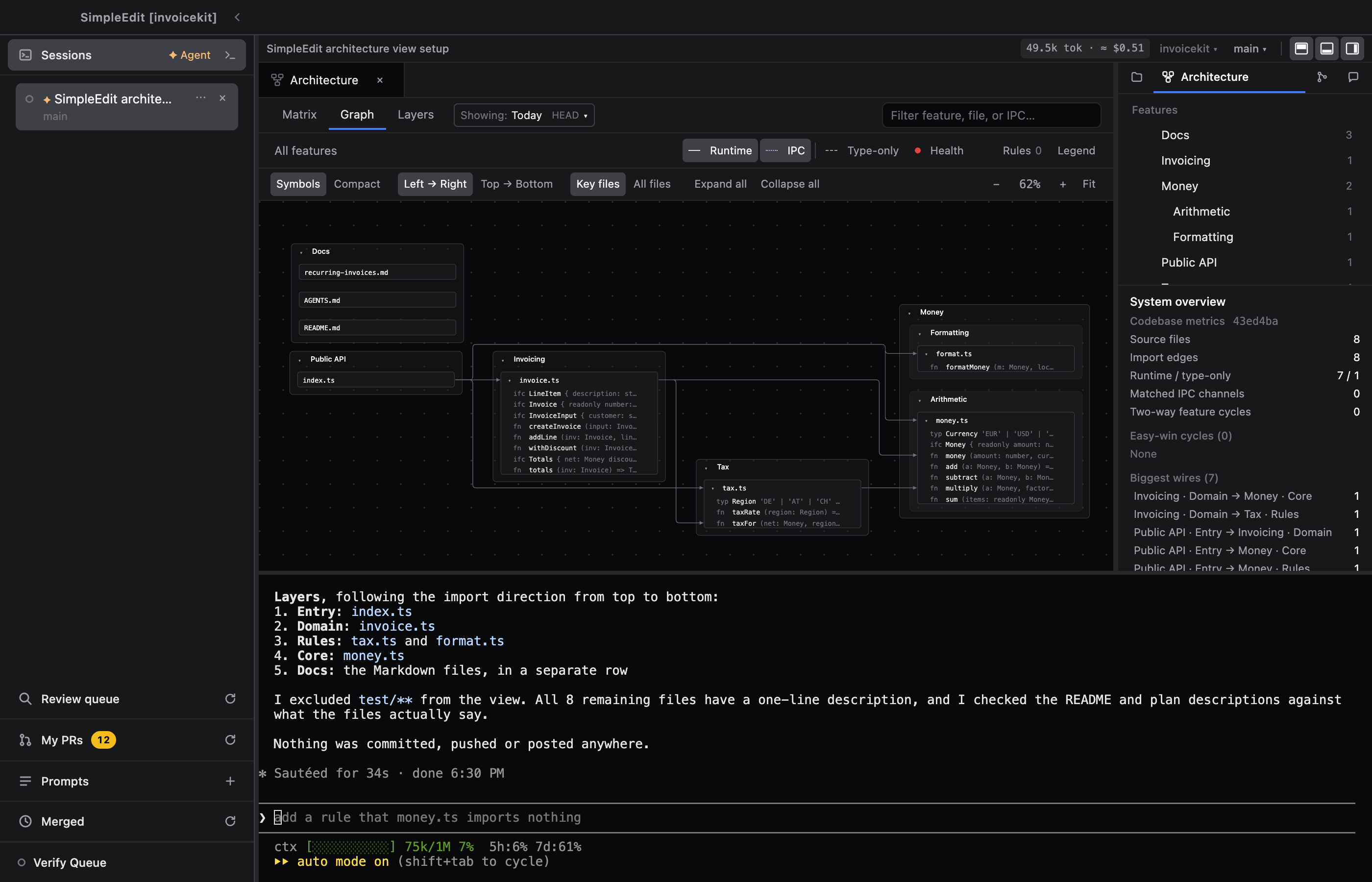
The shot shows the Graph view of a small project: boxes for features such as Invoicing, Tax and Money with their files and functions, wires for the imports between them, and the right column’s Architecture section listing the features and a System overview with counts.
What the map shows
- Features: the parts of your project. Big features split into sub-parts.
- Files inside each part, and their exported functions and types.
- Imports between them. Runtime imports show by default. Imports that exist only for types show when you switch on Type-only.
- Connection rules: links that aren’t imports, such as a route called from a client or an event sent to a listener. They show as labelled interface wires.
- Unmapped: files no feature claims yet. They are grouped by folder.
The map is read from Git, not from a checkout, so it can show any commit. It supports the languages the editor highlights, including C and C++.
Open it
- Press ⌥⌘A (Ctrl+Alt+A on Windows and Linux) in a session. There is one Architecture tab per session.
- Select Architecture in the right column. Its Inspector shows the part you picked, with a list of features below.
- Right-click a folder or file in Files and choose Show in Architecture.
- Right-click a commit in Git log and choose Show in Architecture, or use the Uncommitted row for your working changes.
Read it
The tabs give three views of the same map:
- Matrix: one cell for each pair of features, coloured by direction. One-way is green, two-way is red, lopsided is amber. Select a cell to open its wires in Graph.
- Graph: features open into files and functions, with wires between them. Features start collapsed. Use Key files or All files for a crowded group.
- Layers: the project’s layers, with imports flowing from top to bottom.
A project with nothing set up shows all three tabs and opens on Graph. Matrix and Layers show a Set up with an agent empty state there. Once a project is set up, a tab only shows when it has something to say: Matrix hides with fewer than two features and no sub-parts, and Layers hides when no layers are defined.
The lens button reads Showing: Today or Comparing: …. It picks what the map compares:
- Today: the current state of the repo.
- Working changes: your uncommitted work against HEAD.
- Branch: the branch against its base.
- Commit or range…: one commit, or a base and a target you choose.
- Proposals: the lens picker also lists each proposal an agent made, newest first. A proposal is a planned change an agent sent to the map before building it.
- Drift: appears for a proposal whose base is no longer HEAD. It compares the recorded base and its projected changes with current HEAD.
On any lens other than Today, new, removed and changed links and files are marked, and features that didn’t change fold behind one button.
Other controls:
- Runtime and Type-only show or hide each kind of import.
- Health marks two-way pairs, oversized parts, upward imports and rule endpoints that match nothing. The findings are listed in the Inspector.
- Legend explains the marks.
- The search box filters by feature, file, or an interface key.
Select a feature or file to see it in the Inspector. Double-click it, or press Enter in the Inspector, to draw only that feature and its neighbours. Show everything or Esc takes you back out. Hold ⌘ or Ctrl and scroll to zoom the Graph.
Ask about a part
Each part, file, cell and external node can carry a thread. Open one from the small mark on the node, write your question, and the active session answers in it.
Select a part and choose Explain this part to ask the agent to explain it. The question goes to your session, so it answers with the code open.
External packages and APIs
Packages and APIs your code calls but doesn’t own show as external nodes. Select one to see where your code uses it.
- Ask about it asks your session “How does this repo use X?”
- Expand here opens the other repo in place, at the commit it was expanded at, with wires from your imports and rule keys. If SimpleEdit can’t find the repo, it asks your session to find it.
Let an agent set it up
Out of the box, files that no pattern claims all sit in Unmapped. The first time you open the view in a project with no saved rules, it says so and offers Set up with an agent.
Two things get set up:
- Part patterns: ordered folder patterns that say which feature and sub-part a file belongs to. The first pattern that matches wins.
- Connection rules: small searches over your code that find both ends of a link that isn’t an import, such as a route and its caller. A rule reports its matches, calls with no handler and handlers nobody calls.
The agent works out likely mechanisms from your code, tests each rule against it and saves the ones that match. Rules, patterns and file descriptions are saved for the project. A rebuild of the map doesn’t remove them.
Three buttons send a prompt to your active session. Nothing runs until the agent does it:
- Set up with an agent: map the project, or fix the setup.
- Assign Unmapped: place the Unmapped files into features.
- Refresh descriptions: rewrite the one-line file descriptions. It appears once enough of them are stale.
Rules in the view’s header opens a popover with a count (Rules 3). It lists each rule with its matches, its unanswered calls and unused handlers, and flags a rule that matches nothing any more.
The agent reads and writes the setup through its own tools. It can also read the map as a script, to answer questions about many files at once. Grep stays better for single lookups.
When you review a change
In the Review Room, the What to show menu has an Architecture diff item. It swaps the file list for the same Branch lens map, from the PR’s base to its head. SimpleEdit reads it from Git, so you don’t have to check the branch out.
The item is always listed. When it can’t work, it is greyed out and says why:
- Not cloned here: SimpleEdit doesn’t know a local clone of the repo.
- No base commit recorded: the review has no base to compare with.
- Looking for a local clone…: the search is still running.
If the clone lacks the commits, SimpleEdit fetches them first. It never checks out or merges anything. If the map can’t be loaded, the panel says why and offers Show the files.
In a session’s own Review Room, Show in Architecture opens the Architecture tab on the Branch lens. Selecting a node in the review moves the focus in the right column. Elsewhere, such as the Review queue, a node opens a small details popover.