
Running heavy checks in the Verify Queue
A project’s full checks, such as the whole test suite, are heavy. Ten agents running them at once can starve your Mac. The Verify Queue is the one place those runs go through: one machine-wide queue per project command, shared by every session and every workflow. Agents hand a command to the queue, end their turn, and get the result as mail.
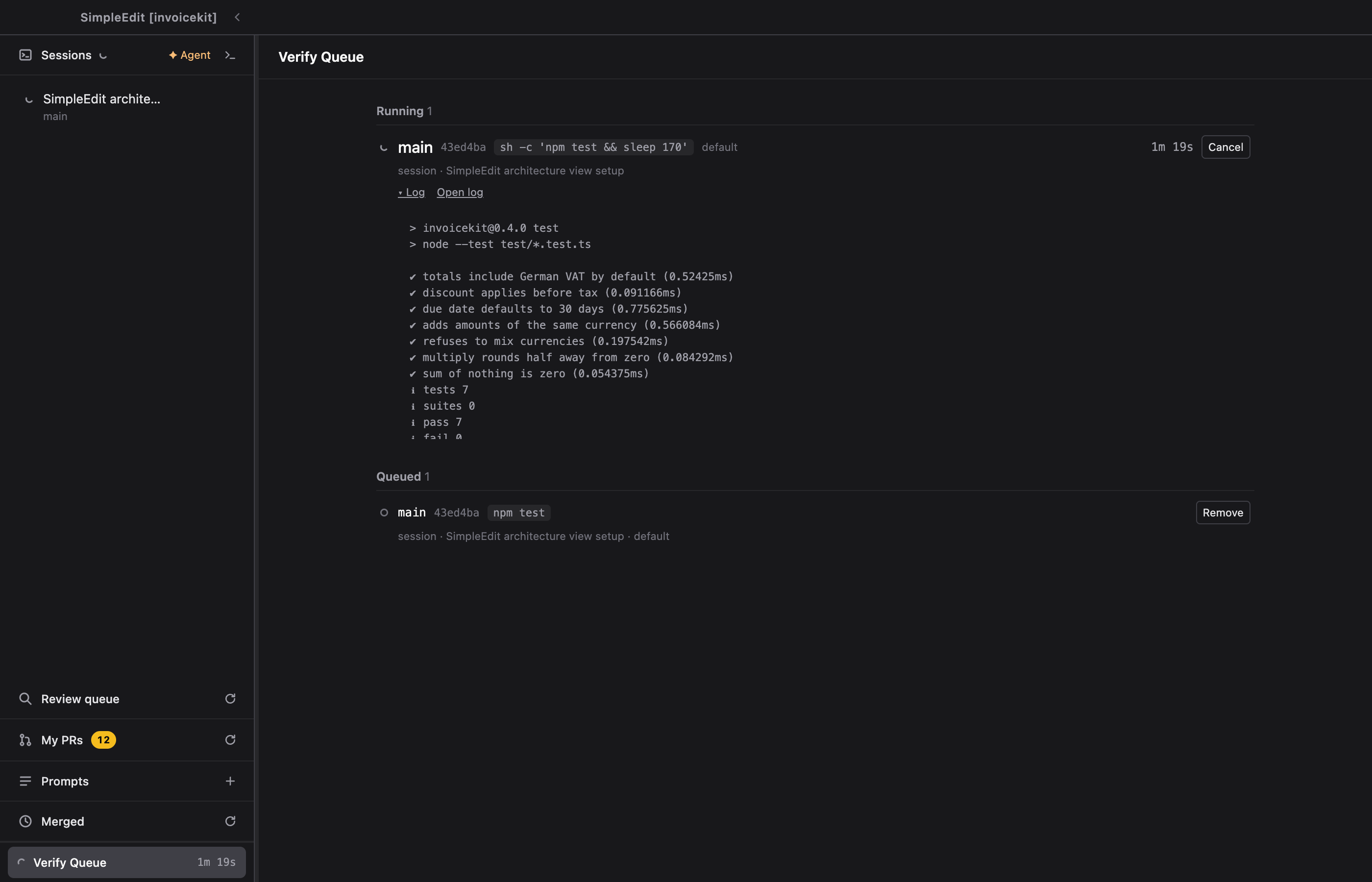
The screenshot shows the view: a Running list with the command, elapsed time and a Cancel button, the live output under Log, and a Queued list with a Remove button. The Verify Queue entry at the bottom of the sidebar shows the same run’s elapsed time.
What the queue does
- It runs one thing at a time per slot. A slot is a lane for one project command. By default it runs one command at once. Requests from the same session or task replace each other: a newer request supersedes an older one that is still waiting.
- It batches branches. Branches waiting together run as one batch, merged onto a freshly fetched
origin/main. One passing run covers all of them. The queue runs committed code only, so it refuses a worktree with uncommitted changes. - It finds the branch that broke a batch. When a batch fails, the queue reads the failure and each branch’s changes, then names the suspects. Only the agents of those branches are woken, with the trimmed log. The rest of the batch runs again to prove it is green.
- It never passes a branch on a guess. A branch passes only when a run with it exits cleanly.
- When it can’t tell, it splits the batch in half and runs each half, again and again, until the culprit is found. If both halves pass alone, nobody passes: every branch gets an “interaction failure” note naming the other branches, so the agents sort it out before anything lands.
A timeout or a cancel is never blamed on a branch’s code.
How agents use it
An agent asks for a run with its enqueue_verify tool and the command, for example the project’s full check. The tool returns at once, and the agent ends its turn. The result arrives as mail. The agent can read it again with get_verify, or withdraw the request with cancel_verify.
The queue only helps when agents use it. Tell them to, for example in the project’s agent instructions: run heavy checks through enqueue_verify, not in their own shell.
Open the Verify Queue
The Verify Queue entry is always at the bottom of the sidebar, and reads “idle” before the first run. With the sidebar collapsed it is the bottom icon of the rail. Select it to open the view in the main area. Select any session, including the one you came from, to go back to it.
The view lists Running, Queued and Recent runs. A run shows its short commit, who asked and how long it has been going. A session waiting on the queue keeps its spinner in the sidebar and reads “Verifying” or “Queued for verify” in its tooltip.
The view is desktop only. The phone has no queue view, but a workflow’s verify card still shows its state there.
Watch a run
A run goes through three phases: Preparing worktree…, Installing dependencies… and then the command itself. Dependencies are installed only when they changed. Select ▸ Log for the live output.
If a run is silent for longer than the stall warning, its timer turns amber and it shows how many minutes it has been quiet. Nothing is killed: the warning is there so you can look and decide. Select Cancel to stop it. The row reads Stopping… until the run has ended. Remove takes a waiting request out of the queue.
While the queue works out who broke a batch, the view shows Analyzing failed Batch of N, then each suspect as a row that updates in place. A failed half that splits again nests its rows. Rows link to the branch’s session, or to its fixer.
Failure logs
Every run writes its whole output to a log file. Open log opens it, and a finished run shows its path as “Full log: …”. Recent runs keep their logs for a while.
The mail an agent gets on failure is short on purpose. It holds the error lines, with a few lines around each, taken from the whole log, and a few lines of summary. A failing step early in the log is not pushed out by a long passing step after it.
Settings
Settings → Verification sets:
- Stall warning (minutes) and Hard timeout (minutes). A run that passes the hard timeout is stopped.
- Slots: how many commands run at once in each, and an Install command if the detected one is wrong. Use Add slot for another lane.
- Failure attribution: the chat model that names the suspects. Use Jev instead of a chat model is an opt-in that needs your own key.
Verify tasks in a workflow
A workflow can contain a verify task, which runs a command through the same queue instead of starting an agent. Its card shows the command before you press Start, so you can check what will run.
- Before a review gate, a verify task checks a worker’s committed work. If it fails, a fixer agent starts in that worker’s worktree with the trimmed failure, then the work is verified again. The task has 3 rounds in total by default. Each failed round starts a fresh fixer worker, then the task checks again. After the last round, the lead gets a judgment.
- After a review gate, a verify task batches every approved branch onto fresh
origin/mainand checks them together, before anything lands. It has no fixer. Iforigin/mainhasn’t moved when the landing task starts, it merges without running the checks again between merges. - A passing verify never passes a gate for you. The gates stay yours.
- A setup error fails at once. If the queue can’t prepare its worktree, the task fails without spending fixer rounds, and tells the lead the check never ran.
Select a verify card to open its popup. It has a Verify tab with the queue position, the batch, the recovery state or the finished result, and one Verify · round N tab per earlier round. A failed round stays readable while its fixer works. A link in the popup header opens the Verify Queue. Cancelling or dismissing the task cancels its queued runs.
Related
- Running a workflow: tasks, gates and landing.
- Driving SimpleEdit from your agent