
Make it yours: themes
SimpleEdit comes with 12 themes. A theme recolours the whole app, including the editor, the diffs and the agent terminals, and every window changes as soon as you pick one.
1. Pick a theme
- Open Settings → Appearance.
- Open the Theme picker. It offers System, then the light and the dark themes.
Choose a named theme to use it all the time. Choose System to let your Mac decide, as described next.
2. Follow your Mac
With System, SimpleEdit follows the Mac’s light or dark setting. Two more pickers appear under Theme:
- When the Mac is light: the theme to show in light mode (Light by default).
- When the Mac is dark: the theme to show in dark mode (Dark by default).
Pick any light theme for the first and any dark theme for the second, and the app switches when the Mac does.
3. On your phone
The phone follows its own appearance setting, not the Mac’s. With System, a phone in dark mode shows your dark theme while the Mac is light, and the other way round. See Your agents on your phone.
The themes
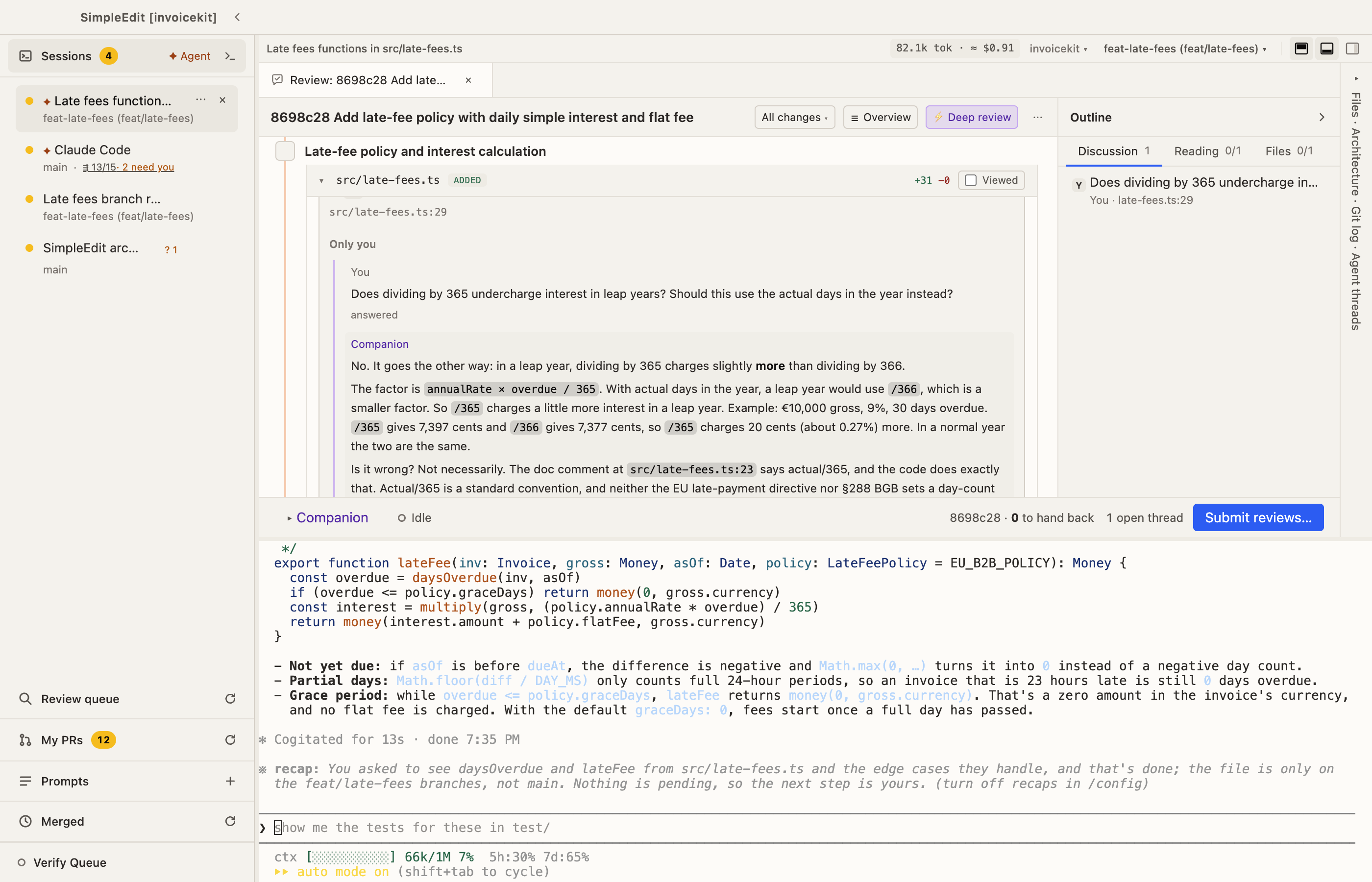
SimpleEdit Paper is the one to try with the terminal.
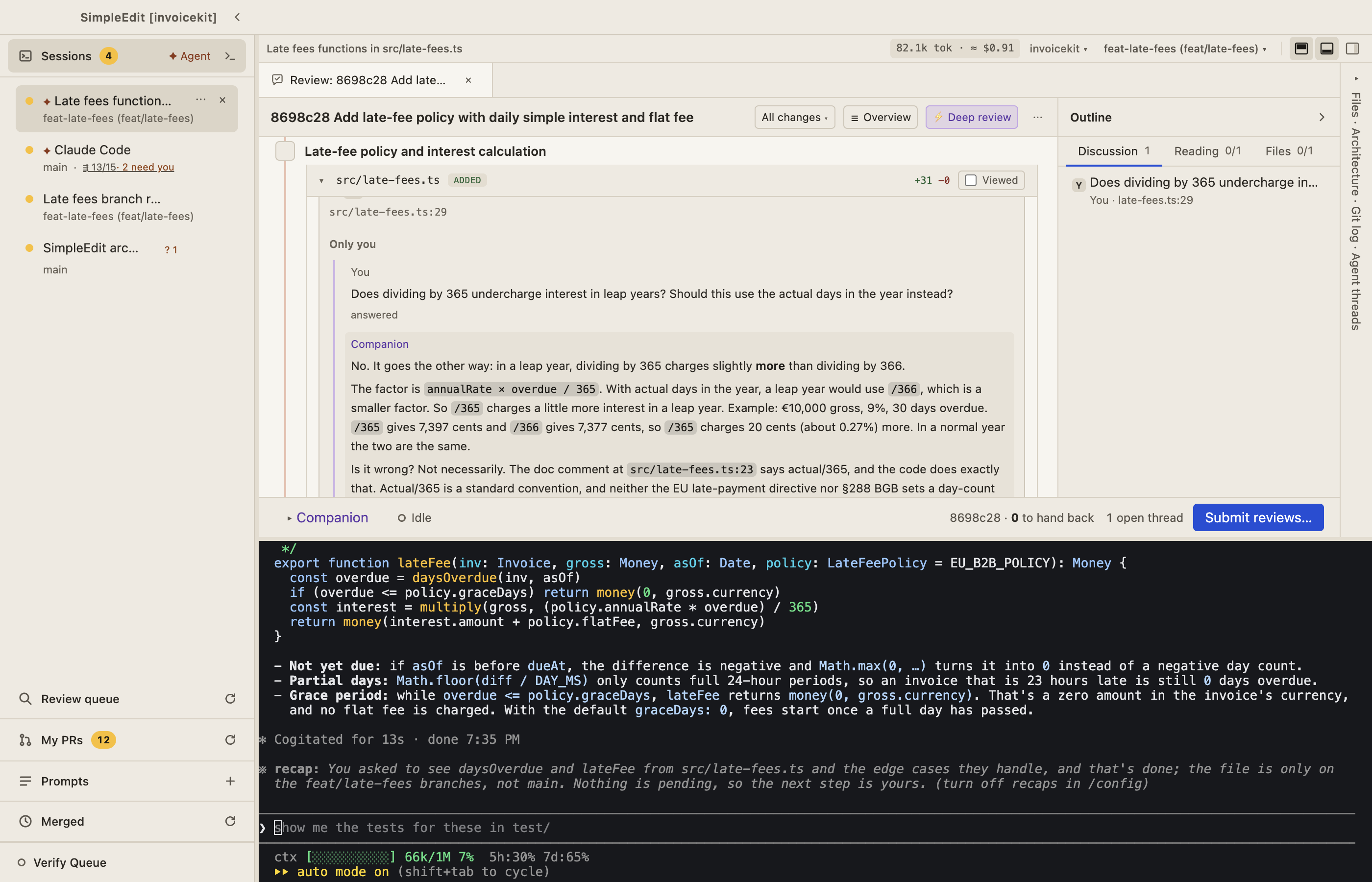
Dark and Light, the defaults for System.
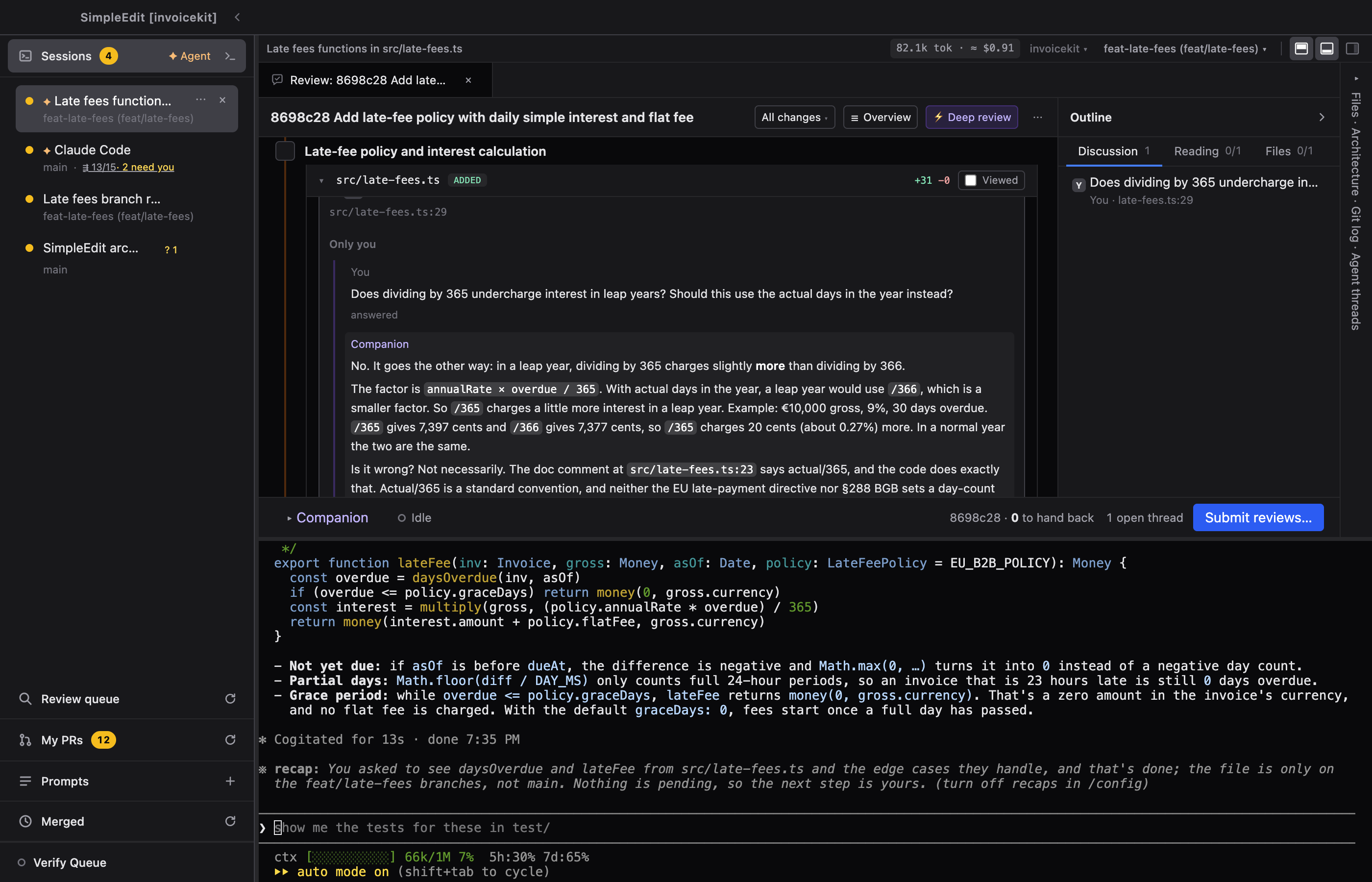
Tokyo Night, a dark theme.

All 12, by the labels in the picker:
- Light: Light, SimpleEdit Paper, Solarized Light, Catppuccin Latte, Gruvbox Light, Tokyo Night Day
- Dark: Dark, IR_Black, Solarized Dark, Catppuccin Mocha, Gruvbox Dark, Tokyo Night